⛵Day 14 Task: Docker Project for DevOps Engineers.

Hey there! I am Pradeep Chitroliya I am a Devops engineer, started writing articles on my DevOps and cloud journey. My purpose is to share the concepts that I learn, the projects that I build, and the tasks that I perform regarding DevOps. Hope you all find it useful.
Dockerfile
Docker is a tool that makes it easy to run applications in containers. Containers are like small packages that hold everything an application needs to run. To create these containers, developers use something called a Dockerfile.
A Dockerfile is like a set of instructions for making a container. It tells Docker what base image to use, what commands to run, and what files to include. For example, if you were making a container for a website, the Dockerfile might tell Docker to use an official web server image, copy the files for your website into the container, and start the web server when the container starts.
🗼Here are some of the most commonly used commands in a Dockerfile:
FROM: Specifies the base image that the new image will be built on top of. For example, you might use an official Node.js image as the base for an application that runs on Node.js.RUN: Executes a command in the image. This command is run during the image build process. For example, you might use theRUNcommand to install necessary packages or dependencies for your application.COPY: Copies files from the host machine to the image. For example, you might use theCOPYcommand to copy the files for your application into the image.ENV: Sets an environment variable in the image. For example, you might use theENVcommand to set a variable that holds the version of your application.EXPOSE: Specifies the ports that should be exposed on the container. For example, you might use theEXPOSEcommand to specify that port 8000 should be exposed on the container.CMD: Specifies the command that should be run when a container is created from the image. For example, you might use theCMDcommand to specify that your application should be started when the container is created.
Task:
Create a Dockerfile for a simple web application
First I login to my docker machine and then write a docker file. name is Dockerfile.
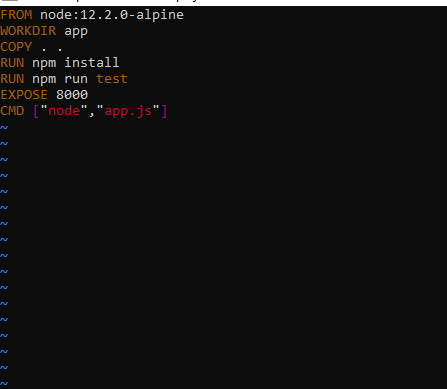
Build the image using the Dockerfile and run the container.
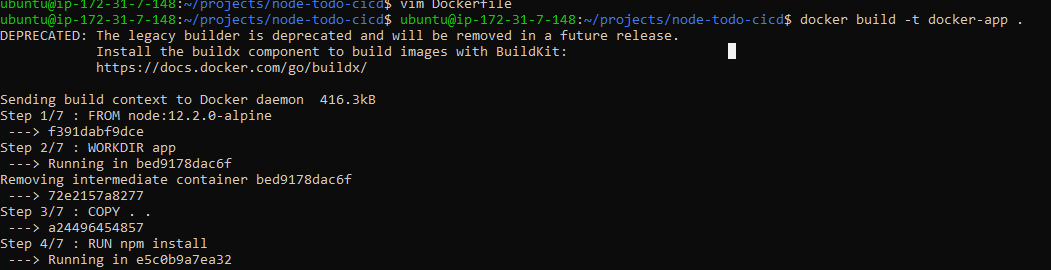
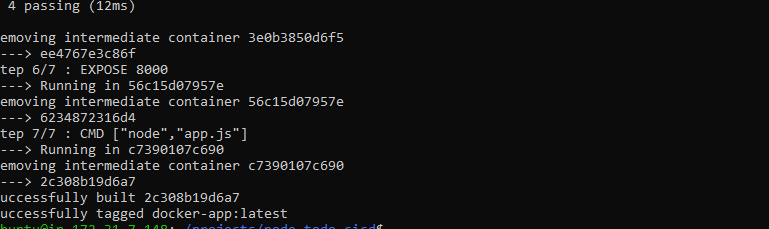
Here the see how to build dockerfile using the command: docker build -t image name .
🗼Run the container
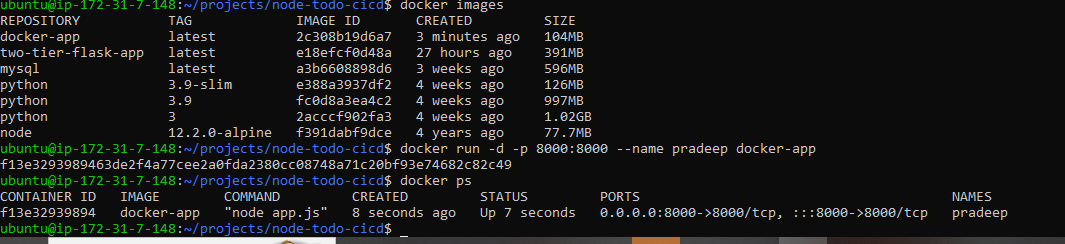
here the see how to run container using command : docker run -d -p port no --name container name image
Verify that the application is working as expected by accessing it in a web browser
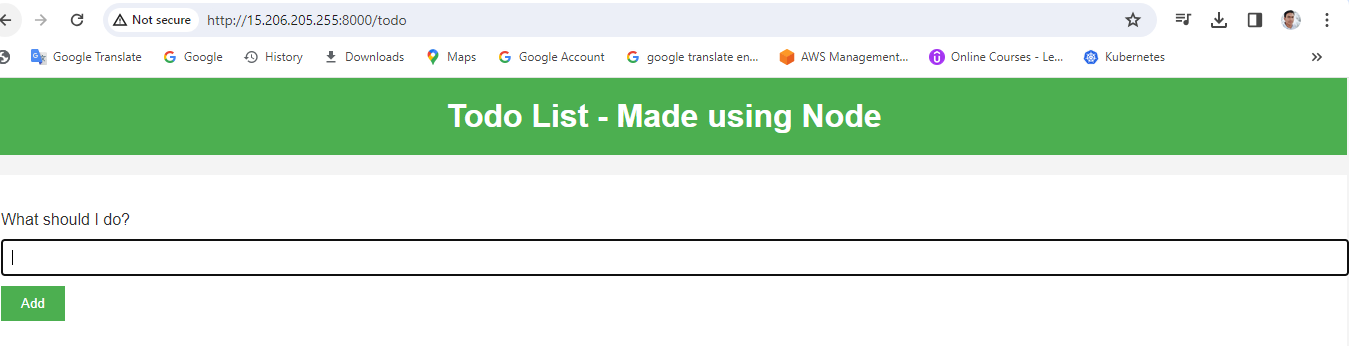
- Push the image to a public or private repository =e.g. Docker Hub
first login docker cmd:- docker login

second gave the tag image cmd: docker tag images:tag username/tag

push cmd: docker push image name
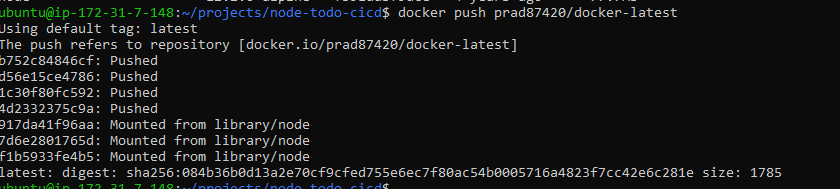
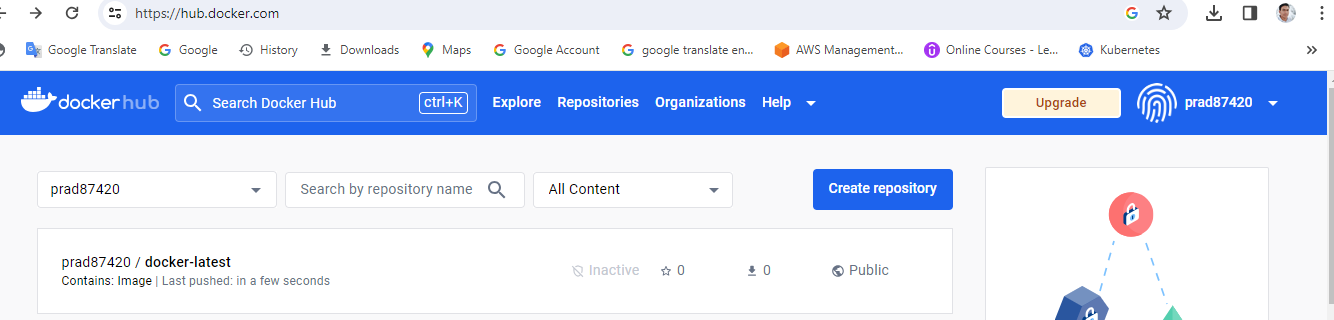
we can see on dockerhub account;
*
👏👏👏Thank you for reading my blog. Don't forget to follow, comment and like my blog..👏👏*


