Day 41: IAM Programmatic access and AWS CLI 🚀

Hey there! I am Pradeep Chitroliya I am a Devops engineer, started writing articles on my DevOps and cloud journey. My purpose is to share the concepts that I learn, the projects that I build, and the tasks that I perform regarding DevOps. Hope you all find it useful.
IAM Programmatic access
IAM (Identity and Access Management) programmatic access refers to the ability to interact with AWS (Amazon Web Services) resources and services using APIs (Application Programming Interfaces). IAM is a service provided by AWS that enables you to manage access to AWS resources securely.
Programmatic access is one of the two main types of access in IAM, the other being AWS Management Console access (which is the web-based user interface). When you enable programmatic access for an IAM user, you are essentially giving that user the ability to interact with AWS programmatically through APIs. This is commonly used for automation, scripting, and integrating AWS services into custom applications.
AWS CLI
The AWS CLI (Command Line Interface) is a set of open-source command-line tools provided by Amazon Web Services (AWS) for interacting with AWS services. It allows users to manage and automate AWS resources directly from the command line.
Key features of the AWS CLI include:
Cross-Service Commands: The AWS CLI provides a unified interface for interacting with various AWS services. Users can perform a wide range of tasks, such as creating and managing EC2 instances, configuring S3 buckets, managing IAM users, and more.
Scripting and Automation: Users can write scripts or use the AWS CLI commands in automation workflows to perform repetitive tasks, deploy applications, and manage infrastructure programmatically.
Access to AWS Services: The AWS CLI covers a broad spectrum of AWS services, allowing users to interact with compute resources (e.g., EC2 instances), storage services (e.g., S3), databases (e.g., RDS), networking (e.g., VPC), and more.
Profile Configuration: Users can configure multiple profiles with different sets of credentials, allowing them to interact with different AWS accounts and regions. This is useful for users who work with multiple AWS environments.
Output Formatting: The AWS CLI supports various output formats (e.g., JSON, text, table) to customize the way information is presented in the command-line output.
Task-01
- Create AWS_ACCESS_KEY_ID and AWS_SECRET_ACCESS_KEY from AWS Console.
AWS account login then go to user option and click on Security credentials.
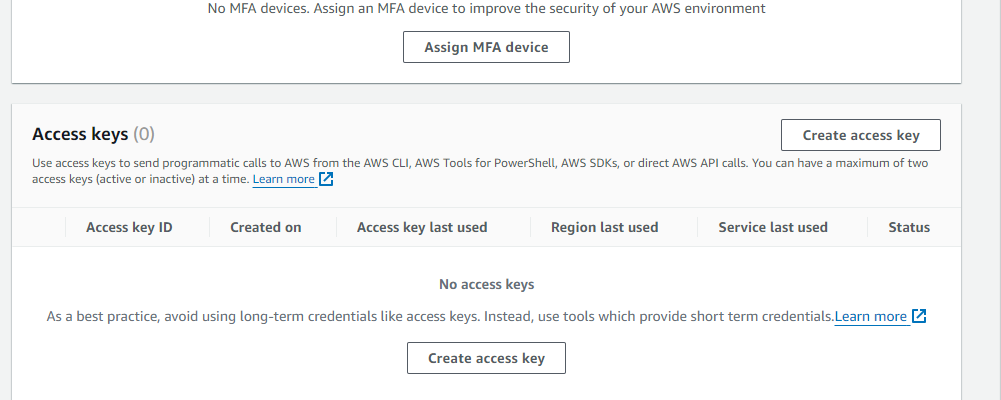
here we can see that create access key
2. click on access key and then create a access key
When show on the two option which are one copy key and other download key we have download key that got it access key id and Secret access key.
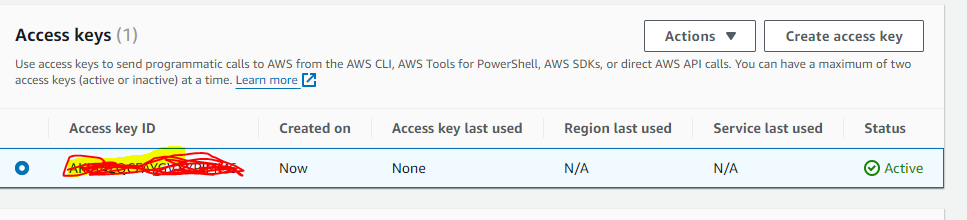
here we can see sucessful created
Task-02
- Setup and install AWS CLI and configure your account credentials
1. AWS account login nand create a EC2 for aws CLI
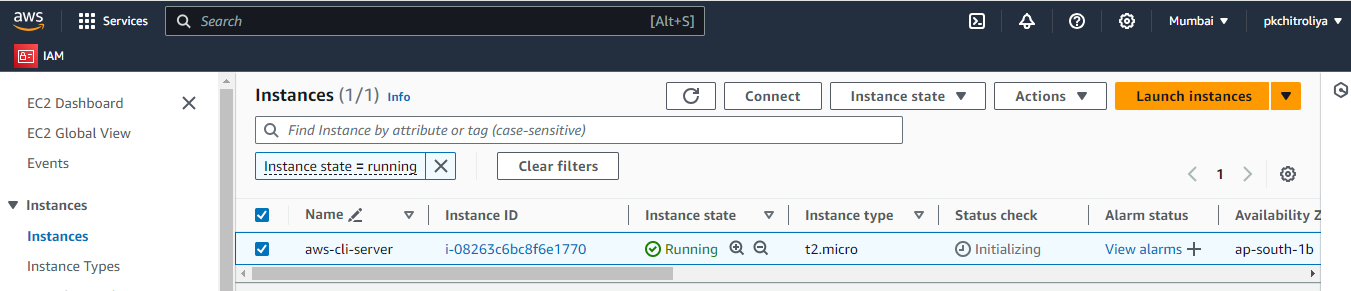
here we can see that create a EC2 for aws cli
2. console login ec2 and install aws cli as per aws documation
Install and update requirements
You must be able to extract or "unzip" the downloaded package. If your operating system doesn't have the built-in
unzipcommand, use an equivalent.The AWS CLI uses
glibc,groff, andless. These are included by default in most major distributions of Linux.We support the AWS CLI on 64-bit versions of recent distributions of CentOS, Fedora, Ubuntu, Amazon Linux 1, Amazon Linux 2, Amazon Linux 2023, and Linux ARM.
Because AWS doesn't maintain third-party repositories, we can’t guarantee that they contain the latest version of the AWS CLI.
To install the AWS CLI, run the following commands.
$ curl "https://awscli.amazonaws.com/awscli-exe-linux-x86_64.zip" -o "awscliv2.zip"

1. if not available unzip pkg that install in your machine using command
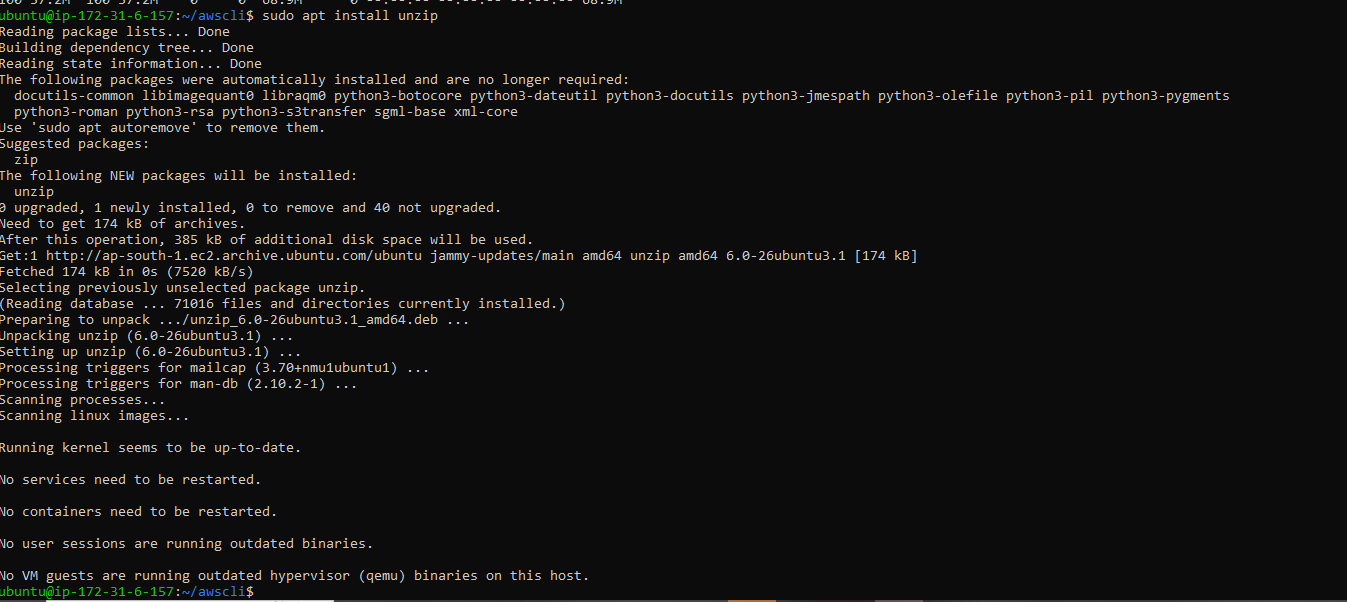
2. used command for aws cli
unzip awscliv2.zip
sudo ./aws/install

Here we can see that successful awscli install in my ubuntu machine in aws EC2 inastance.
3. how to configure your account credentials by awscli
We have craete credentials that will be used for aws cli
Open a Terminal or Command Prompt: Open a terminal window on Linux or macOS, or a command prompt on Windows.
Run the
aws configurecommand: Use theaws configurecommand to set up your AWS CLI with your credentials. The command will prompt you for the following information:AWS Access Key ID: This is your AWS access key.
AWS Secret Access Key: This is your AWS secret key.
Default region name: This is the AWS region you want to use by default (e.g.,
ap-south-1).Default output format: This is the format for the command's output (e.g.,
json,text,table).

here can see that sucessful account configure credentials by awscli.
Thanks for read my blog if you liked it this blog please like and commend.
Contact me on linkedin
check out my GitHub for more resource GitHub


