Day 42: S3 Programmatic access with AWS-CLI 💻 📁

Hey there! I am Pradeep Chitroliya I am a Devops engineer, started writing articles on my DevOps and cloud journey. My purpose is to share the concepts that I learn, the projects that I build, and the tasks that I perform regarding DevOps. Hope you all find it useful.
S3
Amazon S3 (Simple Storage Service) is a popular object storage service provided by Amazon Web Services (AWS). It is designed to store and retrieve any amount of data from anywhere on the web. S3 is commonly used for a variety of purposes, including data backup and recovery, archiving, content distribution, data lakes, and serving static websites.
Key features of Amazon S3 include:
Scalability: S3 can scale virtually infinitely, allowing users to store and retrieve any amount of data.
Durability and Reliability: S3 is designed to provide 99.999999999% (11 9's) durability for stored objects, and it automatically replicates data across multiple locations to ensure high availability.
Security: S3 supports access control mechanisms to manage who can access your data. You can configure bucket policies and use access control lists (ACLs) to control permissions.
Data Management: S3 provides features for organizing and managing data, including versioning, logging, and lifecycle policies. You can also tag objects for better organization.
Data Transfer Acceleration: S3 Transfer Acceleration allows for faster uploading and downloading of objects by using Amazon CloudFront's globally distributed edge locations.
Integration with Other AWS Services: S3 integrates seamlessly with other AWS services, making it a foundational component in many cloud-based architectures.
When you use Amazon S3, you create "buckets" to store and organize your objects (files). Each object in S3 is assigned a unique key within a bucket. S3 supports various storage classes to optimize costs based on the access patterns and durability requirements of your data.
Task-01
- Launch an EC2 instance using the AWS Management Console and connect to it using Secure Shell (SSH).
- login AWS account then we have craeted a EC2 instanace which required as per project that login ec2 of using SSH.
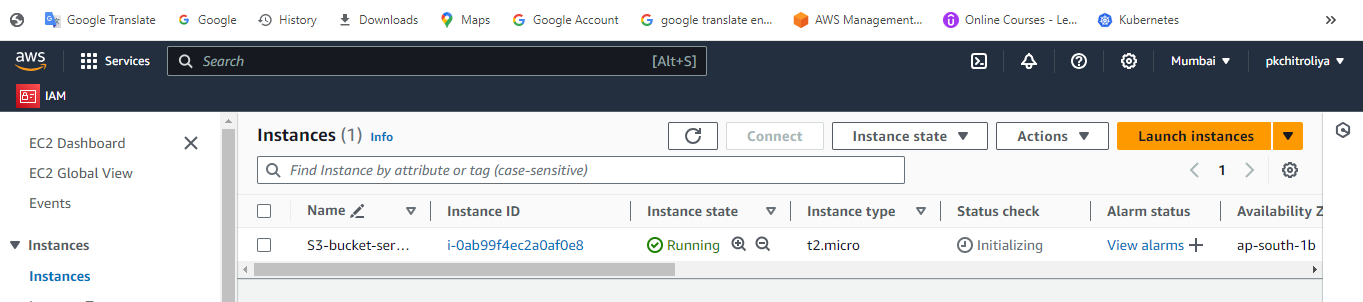
- We have create ec2 their will be login using the SSH: for SSH click on ec2 connect then copy the link paste on download folder in your machine then put it link so easily login in ec2 machine. there here we can see that how to login ec2 machine below.
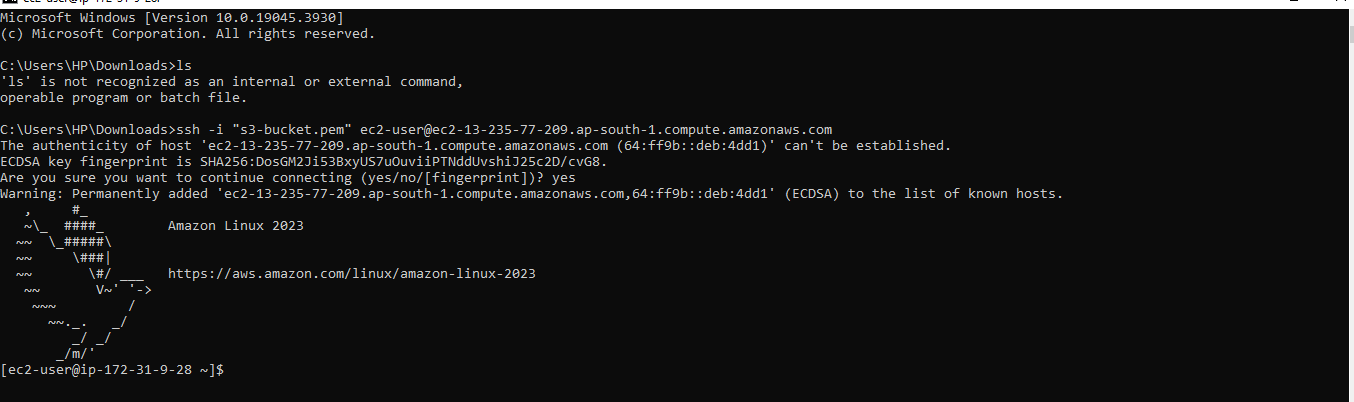
2.Create an S3 bucket and upload a file to it using the AWS Management Console.
Go to aws console then search S3 and create S3 as per required project and uplaod file.
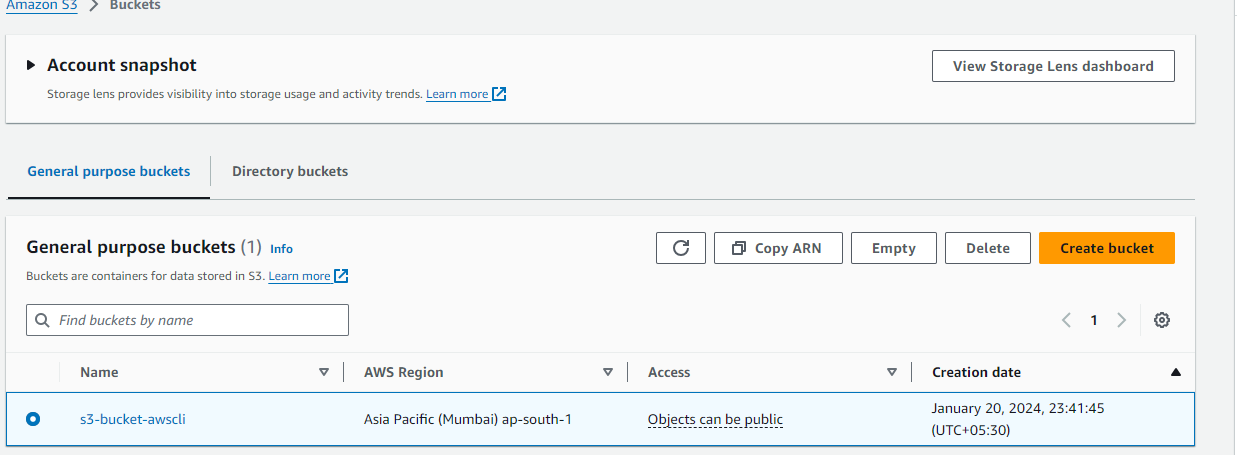
now i have uplaoded file here we can see how to upload file: Go to s3 bucket and then click on the bucket then show the option upload file.
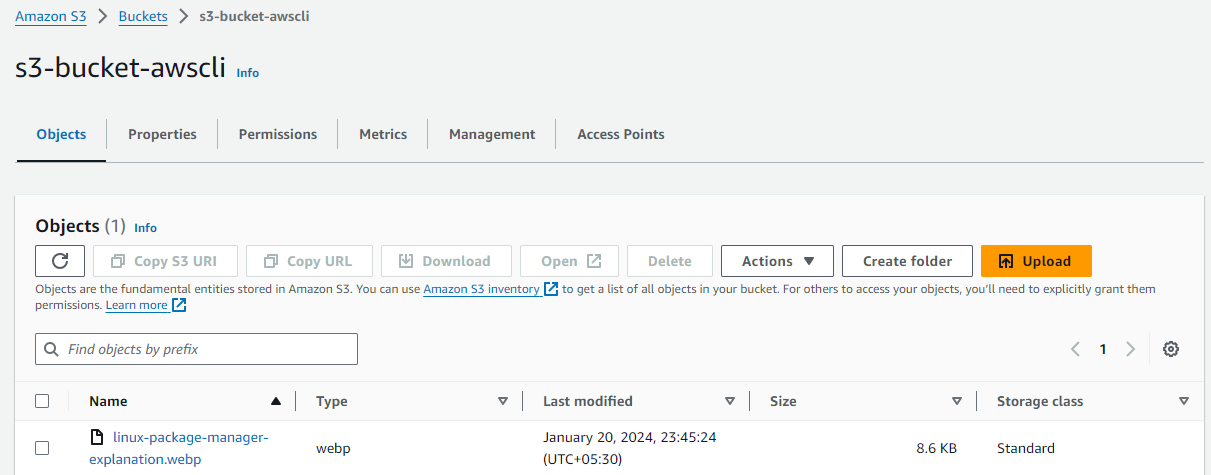
Here we can see sucessful uplaod file in S3 bucket
Access the file from the EC2 instance using the AWS Command Line Interface (AWS CLI)
Login EC2 using the ssh and install in aws cli then acess to S3 bucket.

here we can see that how to access using AWS cli of s3
Task-02
- Create a snapshot of the EC2 instance and use it to launch a new EC2 instance.
Go to ec2 option and create a snapshot for new EC2 instance
i have create a snapshot using the volume then this sanpshot create a image after using this image then create a ec2.
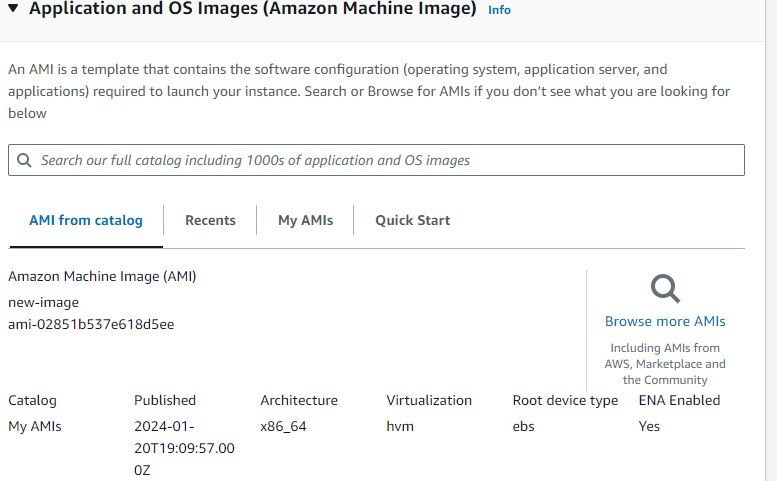
here can see that we have new image create using the sanpshot
i have sucessful login in ec2 that create using the snapshot

2 . Download a file from the S3 bucket using the AWS CLI.
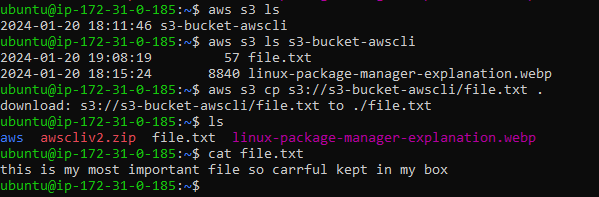
i have login ec2 insatnce and download the s3 buckte file using the Aws cli

- Verify that the contents of the file are the same on both EC2 instances.
i have checked both ec2 login and download the file from S3 bucket that will be match so that is correct.here can see that both ec2 in download the file from s3 bucket pls find the snaps below.

Thanks for read my blog if you liked it this blog please like and commend.
Contact me on linkedin
check out my GitHub for more resource GitHub


